
In some cases that you find Senzo-U sensors are not working properly, a reset could be performed to reload or overwrite the configurations.
Back panel of the Senzo-U
Figure 1 – Back panel
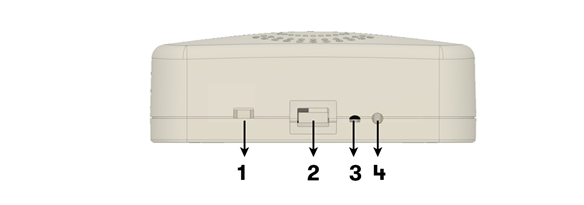
- Power Switch
- Power (MicroUSB)
- LED
- Reset (can be accessed using a paperclip or pen)
Soft Reset
A soft-reset can reload sensors' configuration without erasing any hard-coded settings.
- When the sensor is powered on, press and hold the reset button (4) until the LED (3) starts blinking yellow.
- Switch the sensor OFF with the Power Switch (1).
- Wait for 10 seconds.
- Switch the sensor ON with the Power Switch.
Hard Reset
A hard-reset can be used to reconfigure the sensors in case the Network information was set up incorrectly.
- When the sensor is powered on, press and hold the reset button (4) until the LED (3) starts blinking yellow.
- Open Settings > Wi-Fi on your phone (maybe different depends on the model), it will show a Wi-Fi network named “SenzoLive-MAC Address” on the list.
- Connect to the network with password “senzo”. (Android devices from version 6 will display a message ‘This network has no internet access, stay connected?’ Always select ‘Yes’)
- After connecting to the SenzoUnit, the LED will blink green rapidly. Open Safari, Chrome or Firefox internet browser and type the following address http://192.168.0.1
- The following configuration screen appears, insert the new network information (SSID and Password) if required. The server address, port, and passphrase are automatically filled.
- After “Save”, the LED switches off and the following line is shown on the website: “Configuration saved, resuming operative mode” indicates completed process.
Copyright Steerpath. All rights reserved.
Comments
0 comments
Please sign in to leave a comment.