
Introduction
This is a guide for Steerpath maps and their default style. This document is designed to help understand what sort of elements can be visualised on the Steerpath maps and how. More information about how you can modify and customise your maps can be found from the Map Editor Guide document.
Steerpath maps use Mapbox as a map engine and the style which determines the visual look of the data is written according to the Mapbox style specifications.
Elements
This section will introduce different elements which can be shown on the Steerpath map. They are sorted into different categories.
Buildings
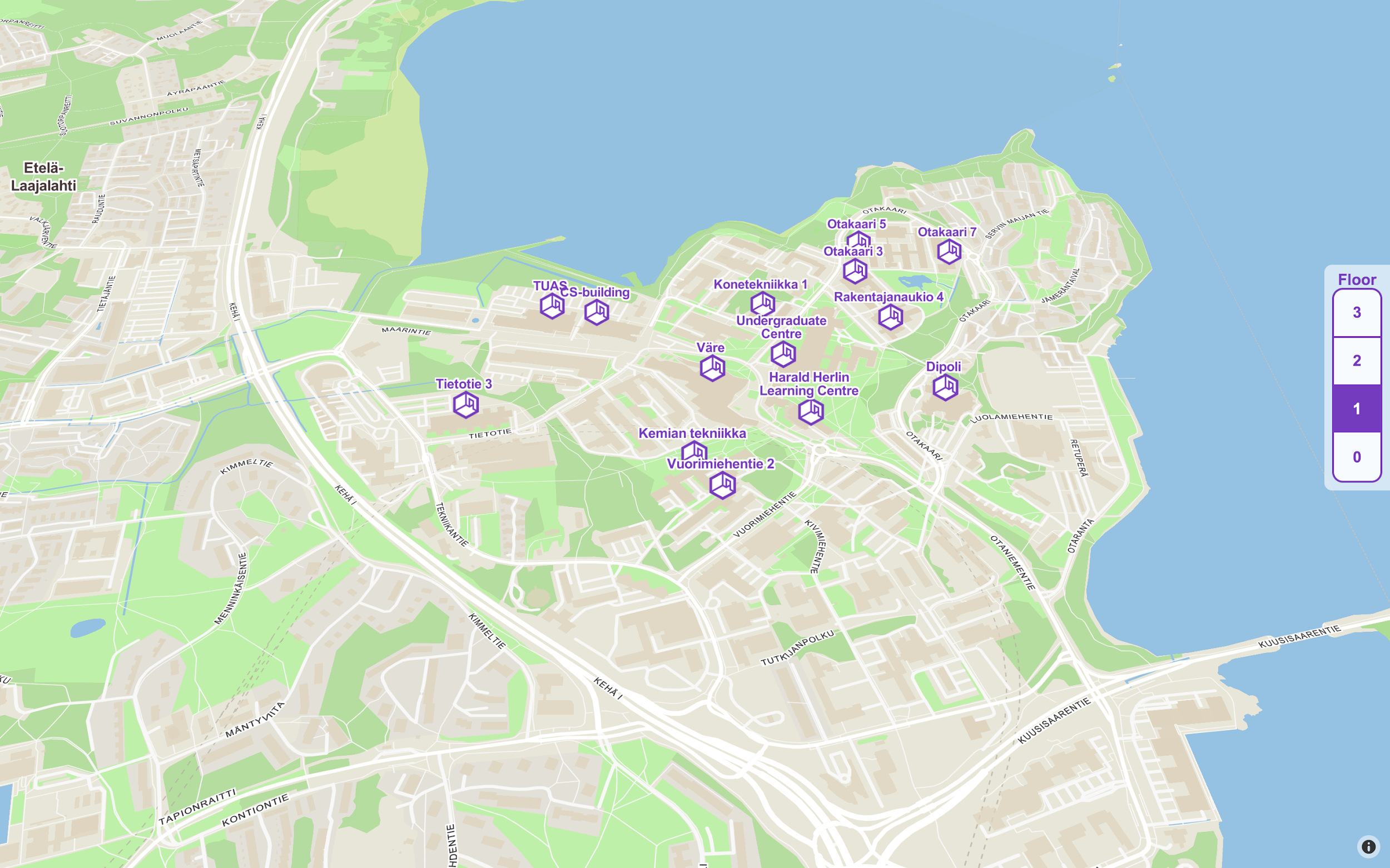
At the highest zoom levels, the building data is shown. Building data includes a point and an area. Building point includes a title, symbol and an optional address text. Building’s symbol can be modified to be any of the supported symbols. Also, the building title and address text colour and halo colour can be customised.
Wings and Departments
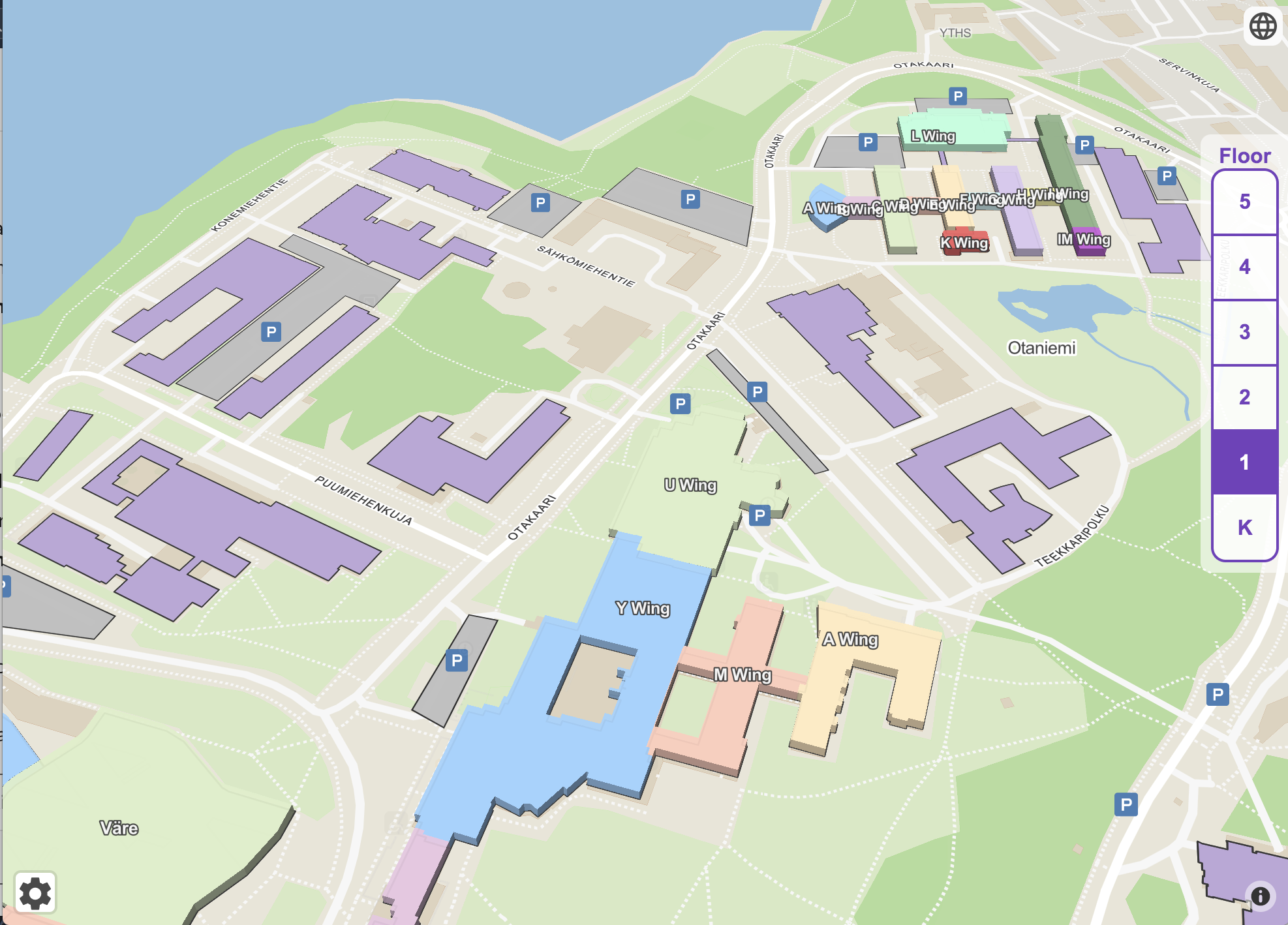
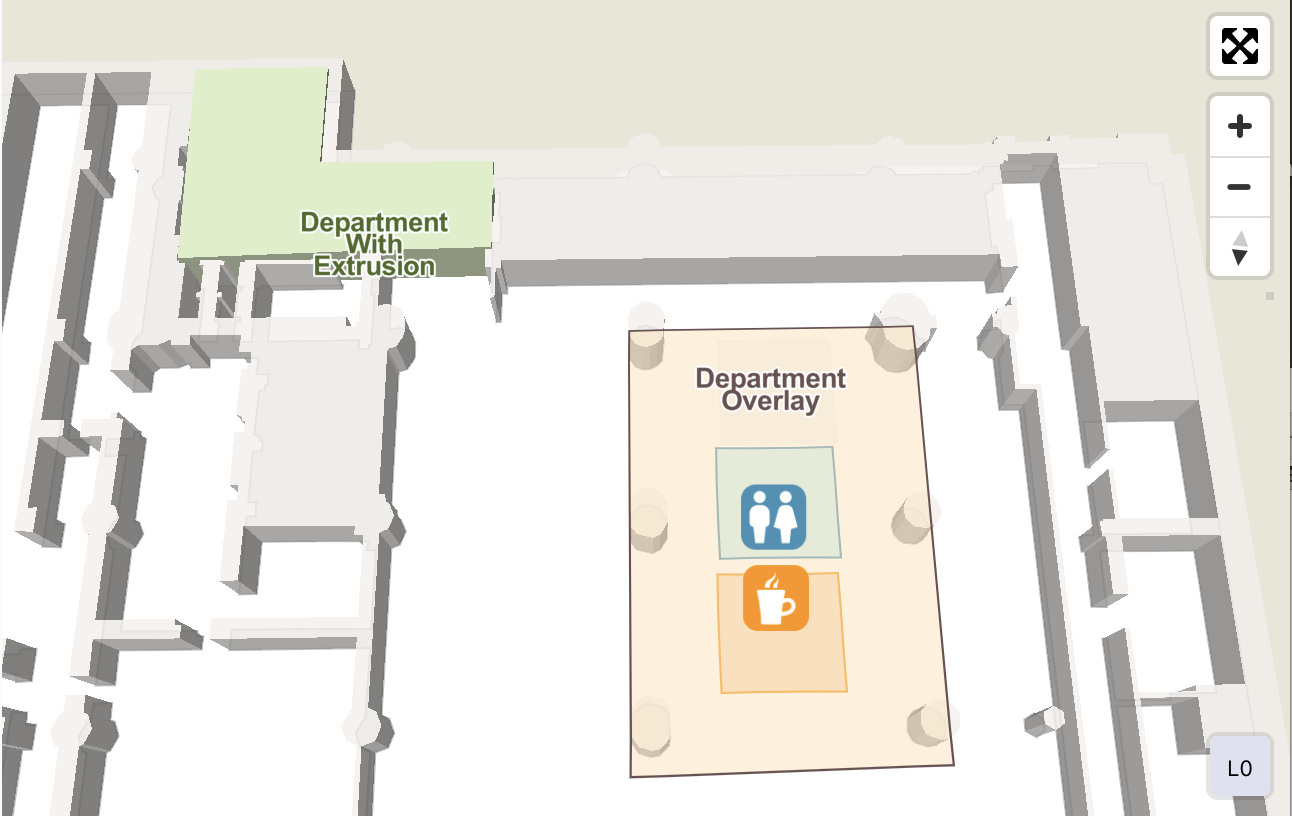
Wings and departments can be added to the maps to divide the building and floor into separate parts and subparts. Wings are displayed first and one zoom level after departments are shown. Both wings and departments include the polygon area, it’s an outline and title property. All these can be customised in various ways.
Wings can be extruded as 3D elements or they can be visualised as flat polygons with outlines. The wing fill colour also determines the extrusion colour. The extrusion is set to a height so that no element will be drawn below it.
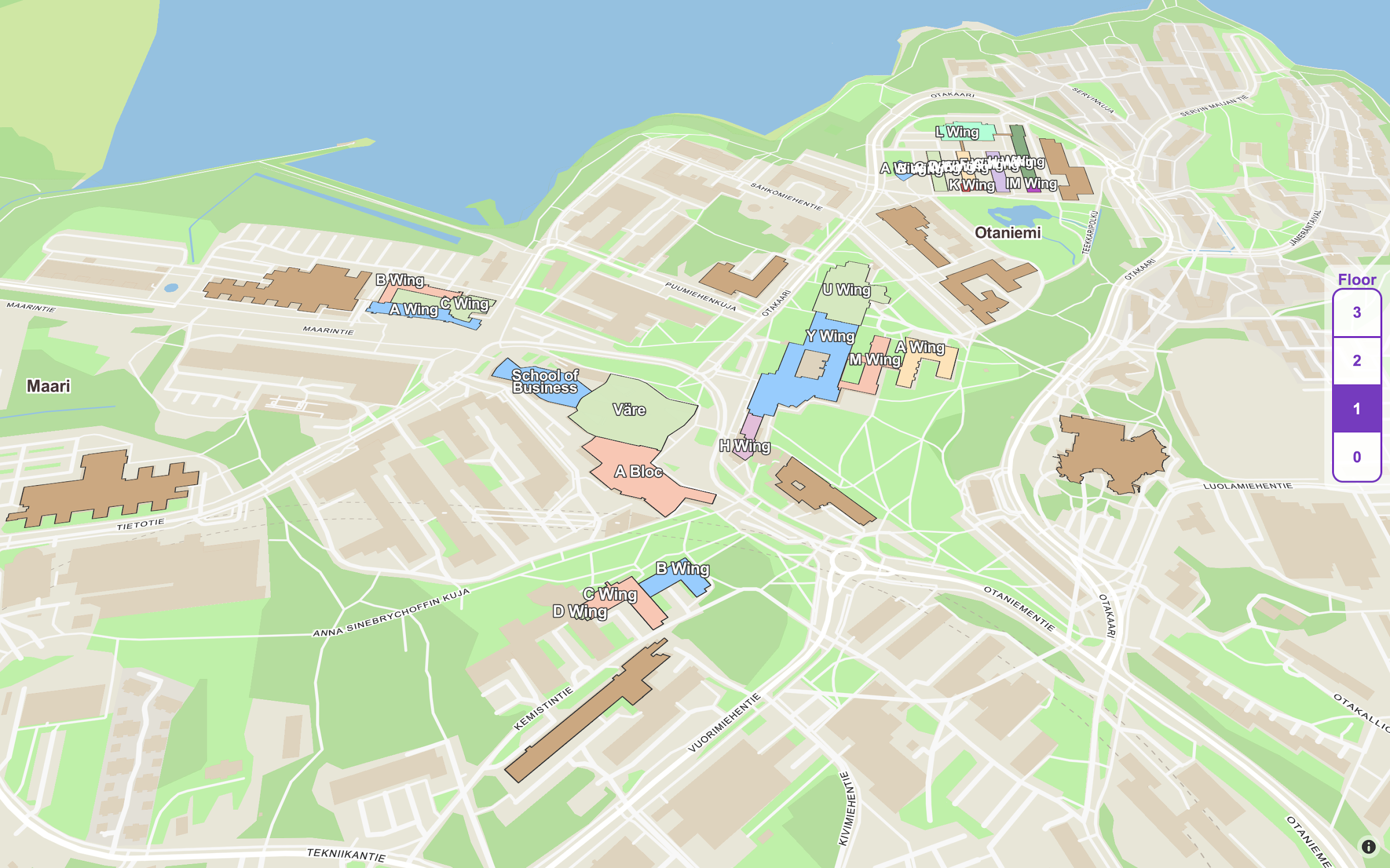
There are two types of departments. Ones that will disappear from the map after zooming in and ones that will stay on the map. These sticky departments can also be extruded as 3D elements or they can be visualised as flat polygons with outlines. If they’re visualised as flat polygons they will create a transparent overlay on top of the map.
Infrastructure
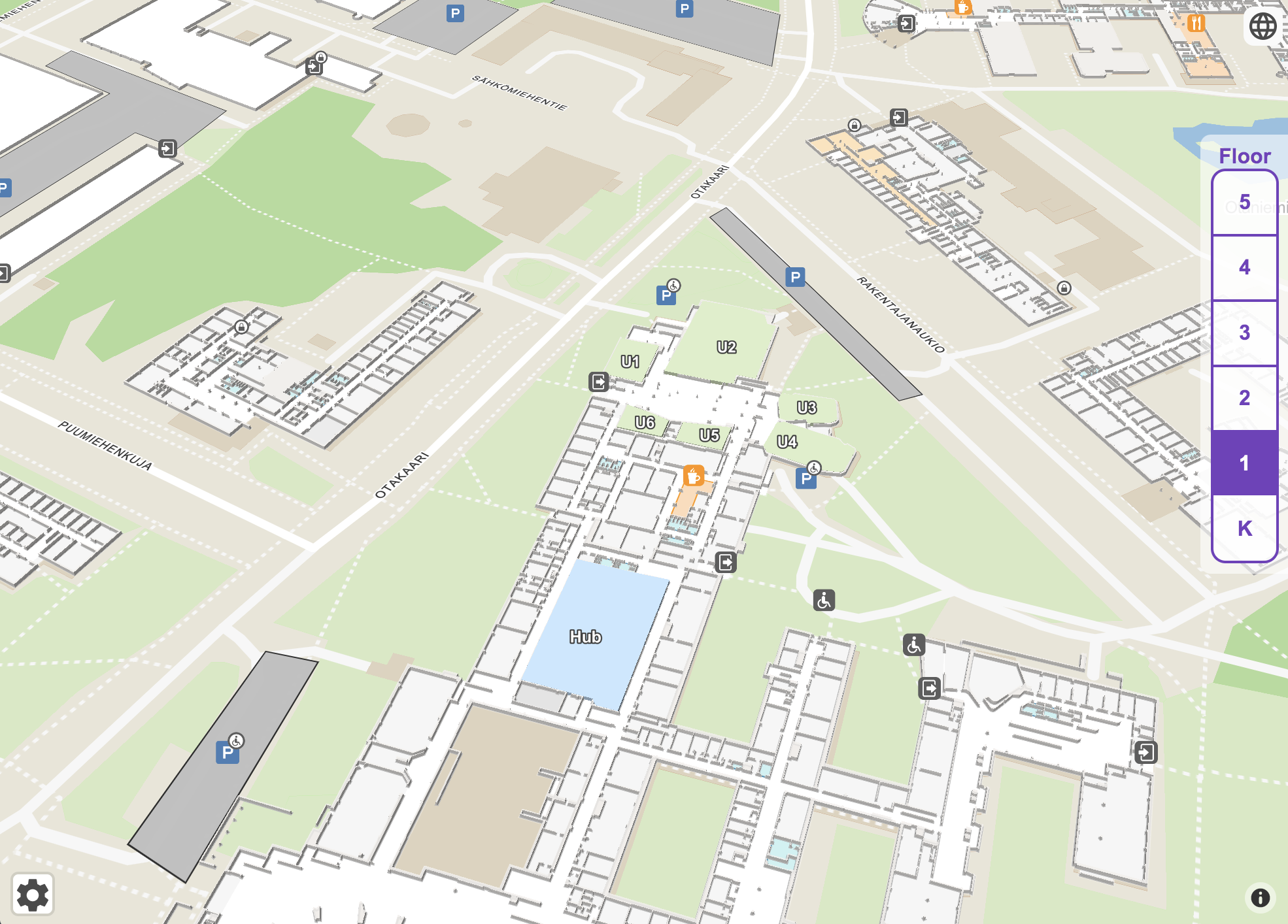
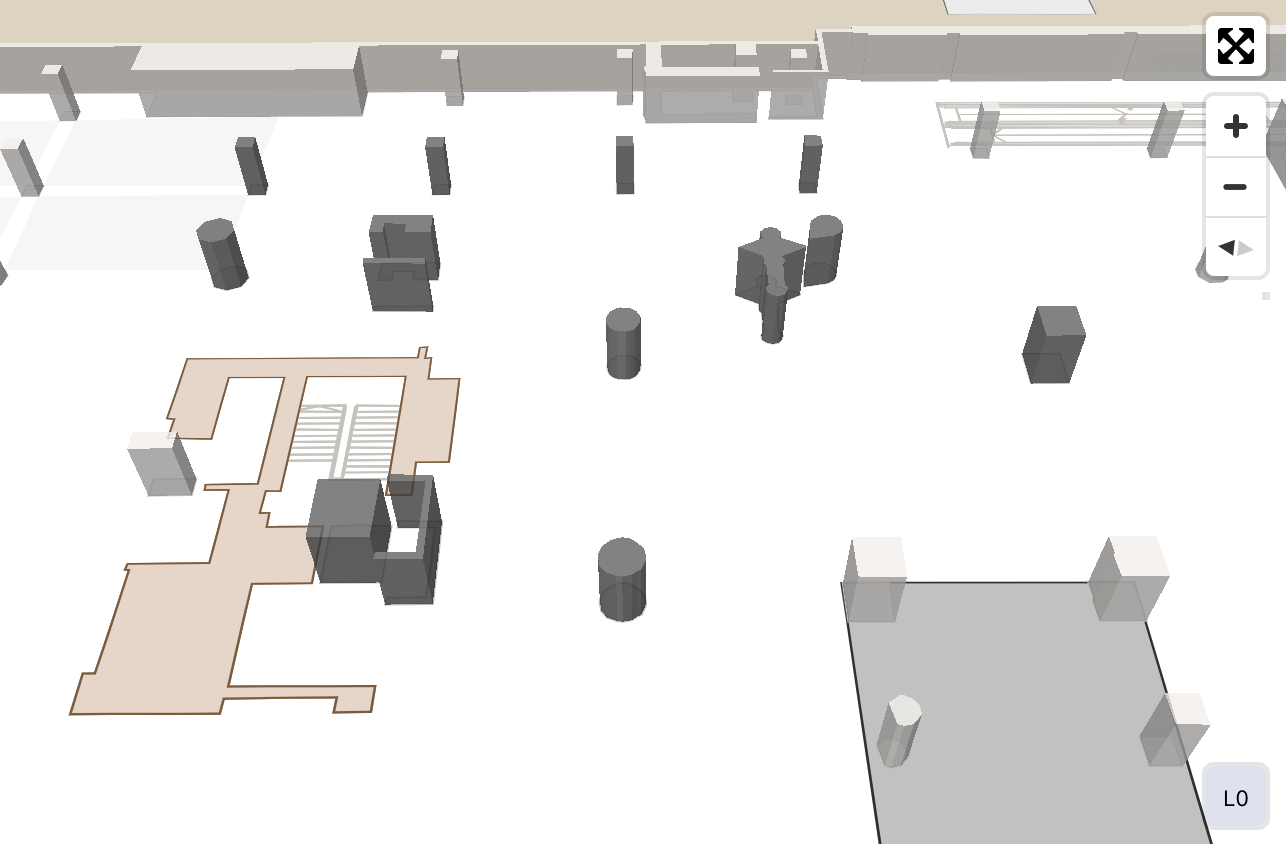
Steerpath Map includes infrastructural elements such as walls and floors. Floors are displayed as white polygons on the map and they cannot be customised at the moment.
Walls are displayed as polygons which can be modified. Walls can be extruded as 3D elements or they can be visualised as flat polygons with an outline.
Points of Interests
Points of interests (POIs) are sorted into three different categories:
- Primary. Primary POIs are visualised first and they take priority over other symbols when colliding with them. The primary category includes food, retail, cafe, entertainment and accessible related POIs. Primary POIs are always visualised with symbol and title.
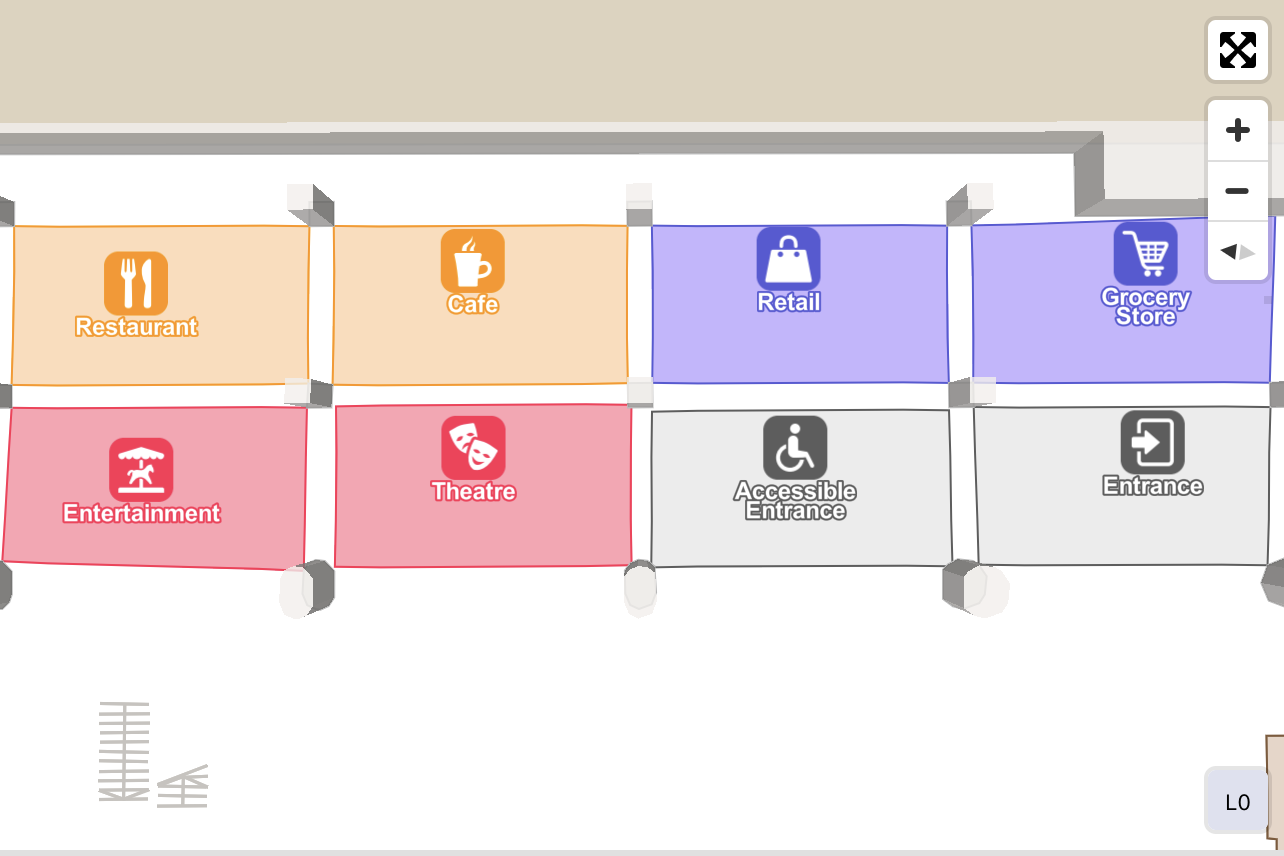
- Secondary. Secondary POIs are visualised one zoom level after the primary POIs and they include both a symbol and title data. If a secondary POI symbol collides with a primary POI symbol they will be hidden. The secondary category includes restroom, transport, travel, hospital and amenity related POIs.
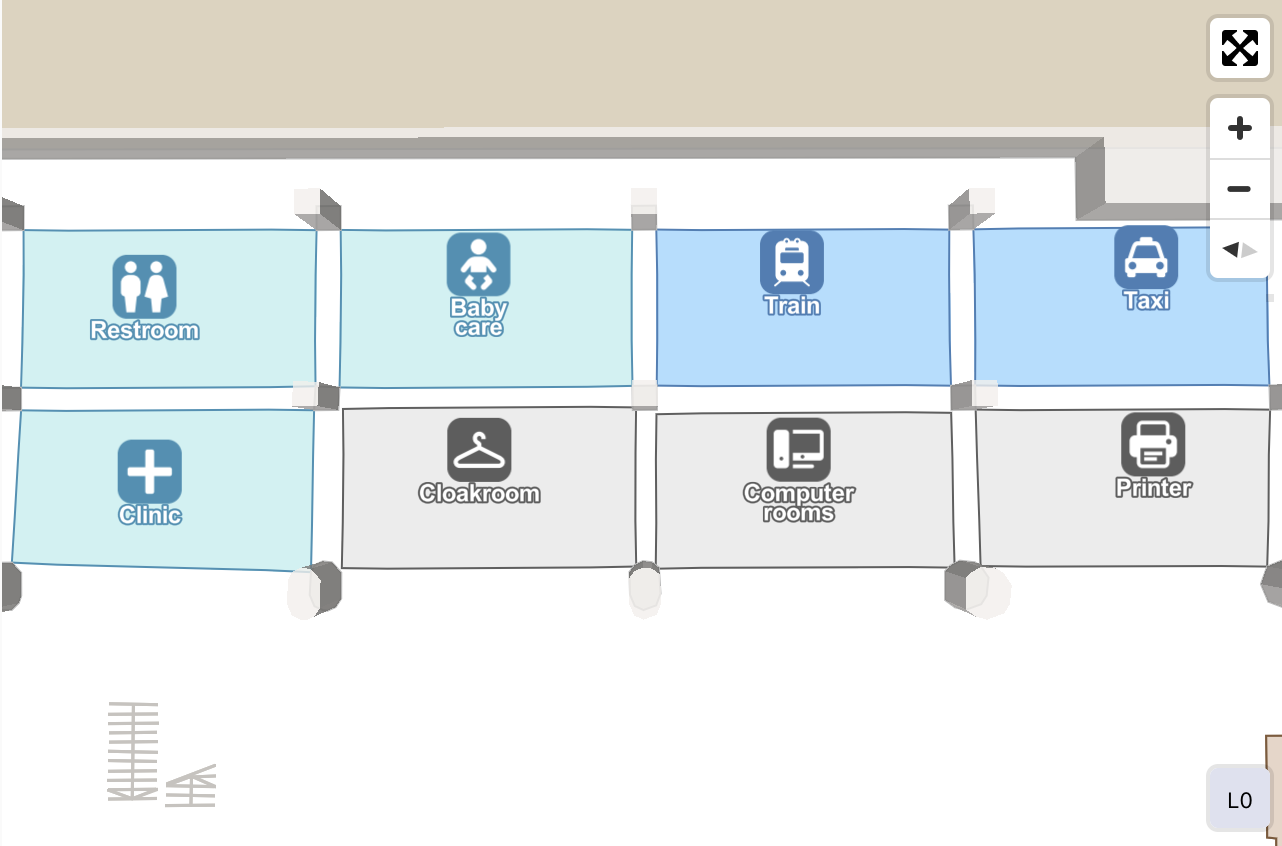
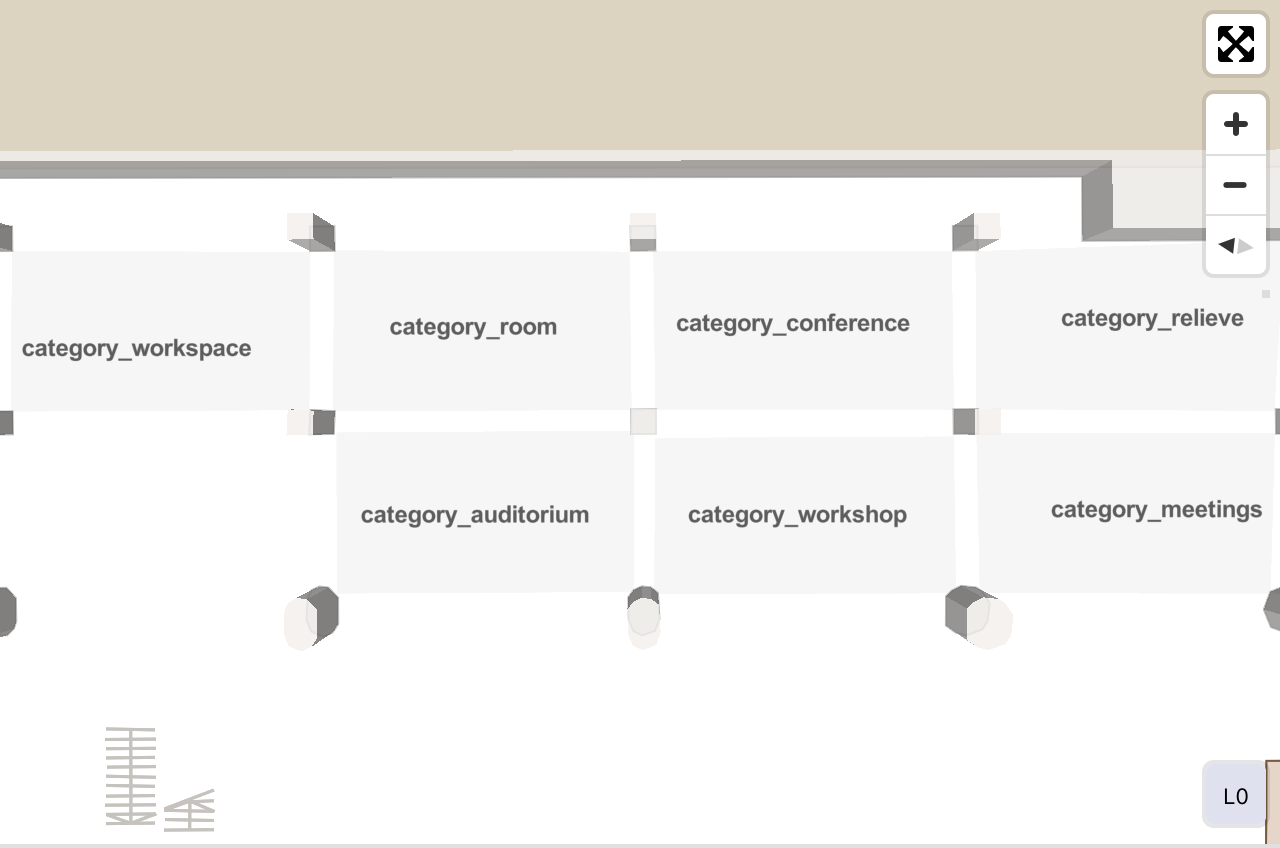
- Tertiary. Tertiary POIs are visualised one zoom level after secondary POIs. Tertiary POIs are visualised only with a title which is aligned with the map. The tertiary category includes room, office and expo related POIs.
Details
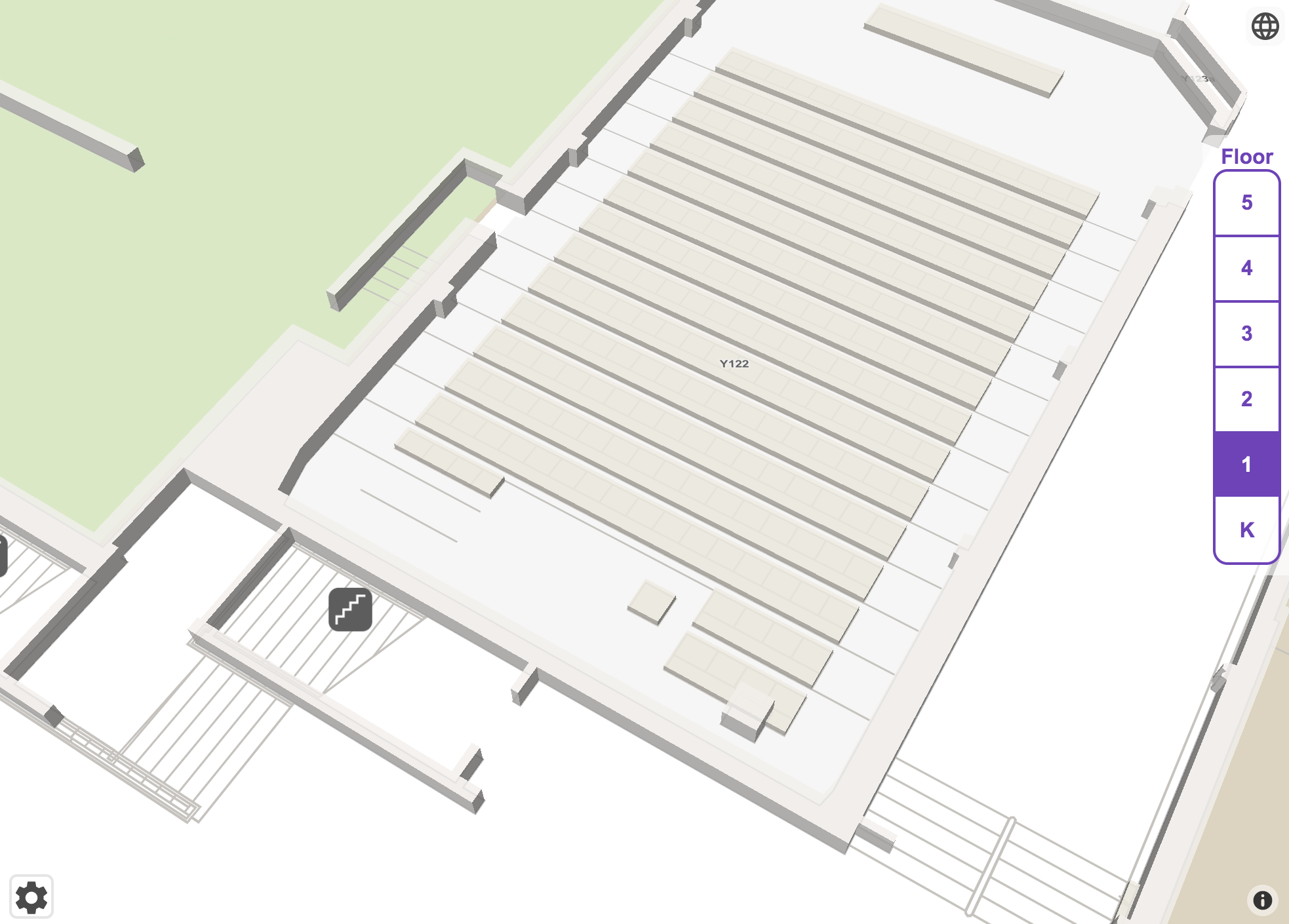
In deeper zoom levels more details are shown on the map. These details include furniture, railings, stairs, plants and water areas.
Furniture and railings are visualised as extruded 3D elements and their extrusion colour can be modified. Underneath the extrusion possible lines can be shown to give more insight about the furniture.
While stairs can be visualised as secondary POIs with symbols they can also be shown as line elements in the map. These line elements can give information about the size and direction of the stairs.
Outdoor
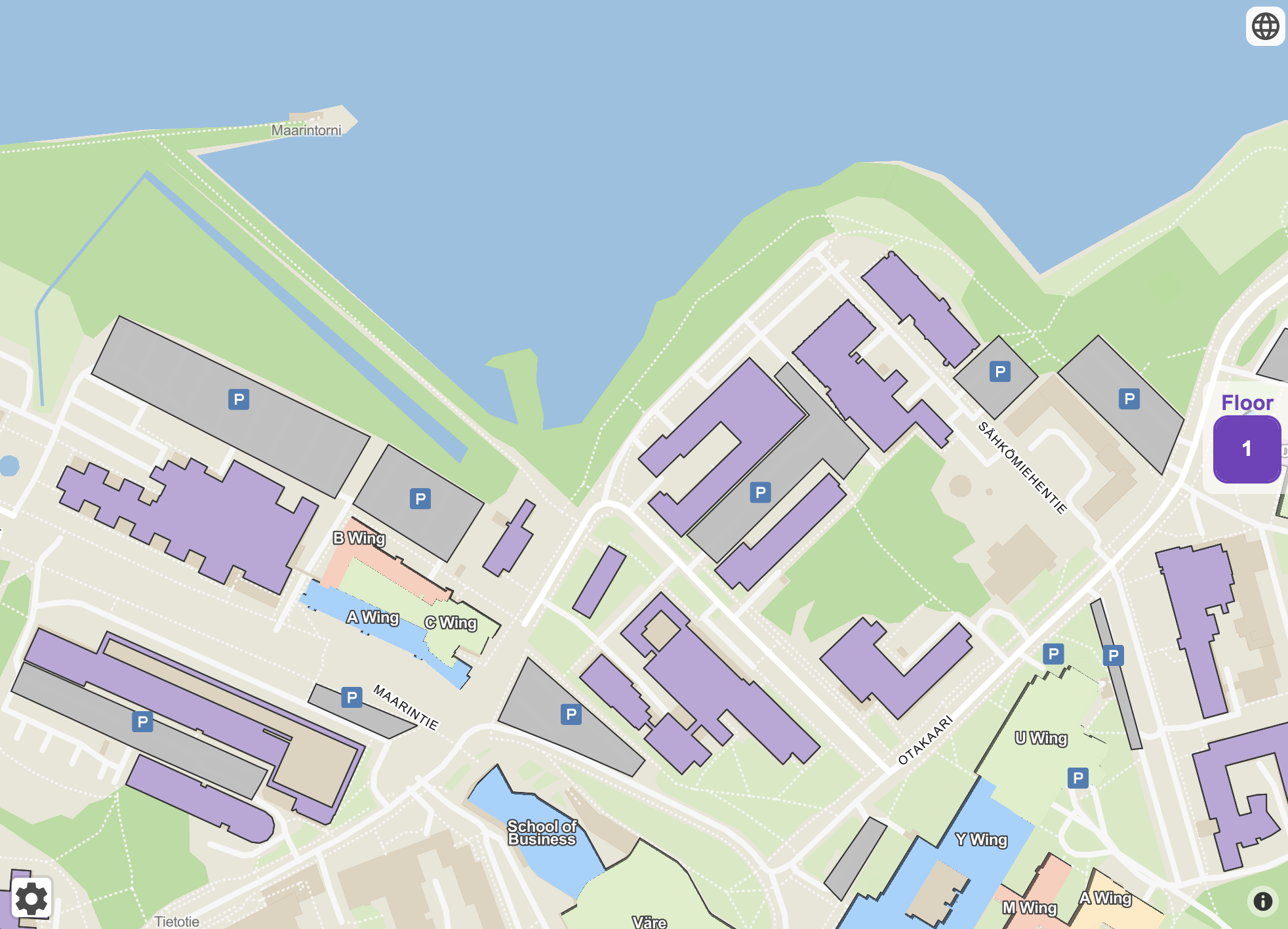
There are some outdoor elements related to buildings which will be visualized regardless of the active floor on the map. These outdoor elements are also visualized on a higher zoom level compared to other POIs. At the moment supported outdoor elements are car parks, grass and water areas.
Custom Elements
Here's a list of the custom elements which can be added to Steerpath maps:
Cover Area. If you want to hide part of your building so that no walls, text or symbols will be visible you can add a Cover Area POI there.  Texts. If you want to add text labels to the map without any symbols attached to them you can use either small, medium or large texts.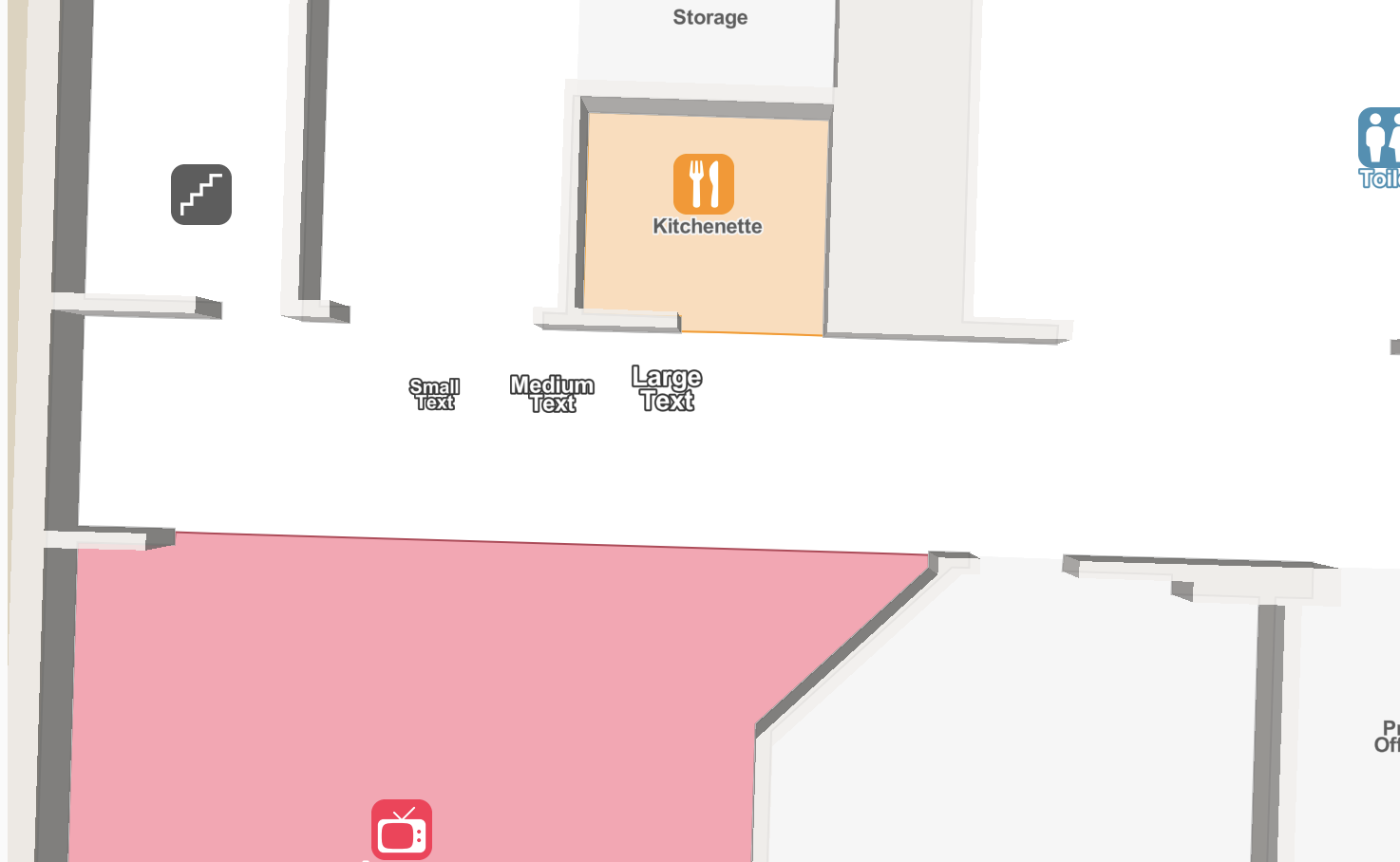
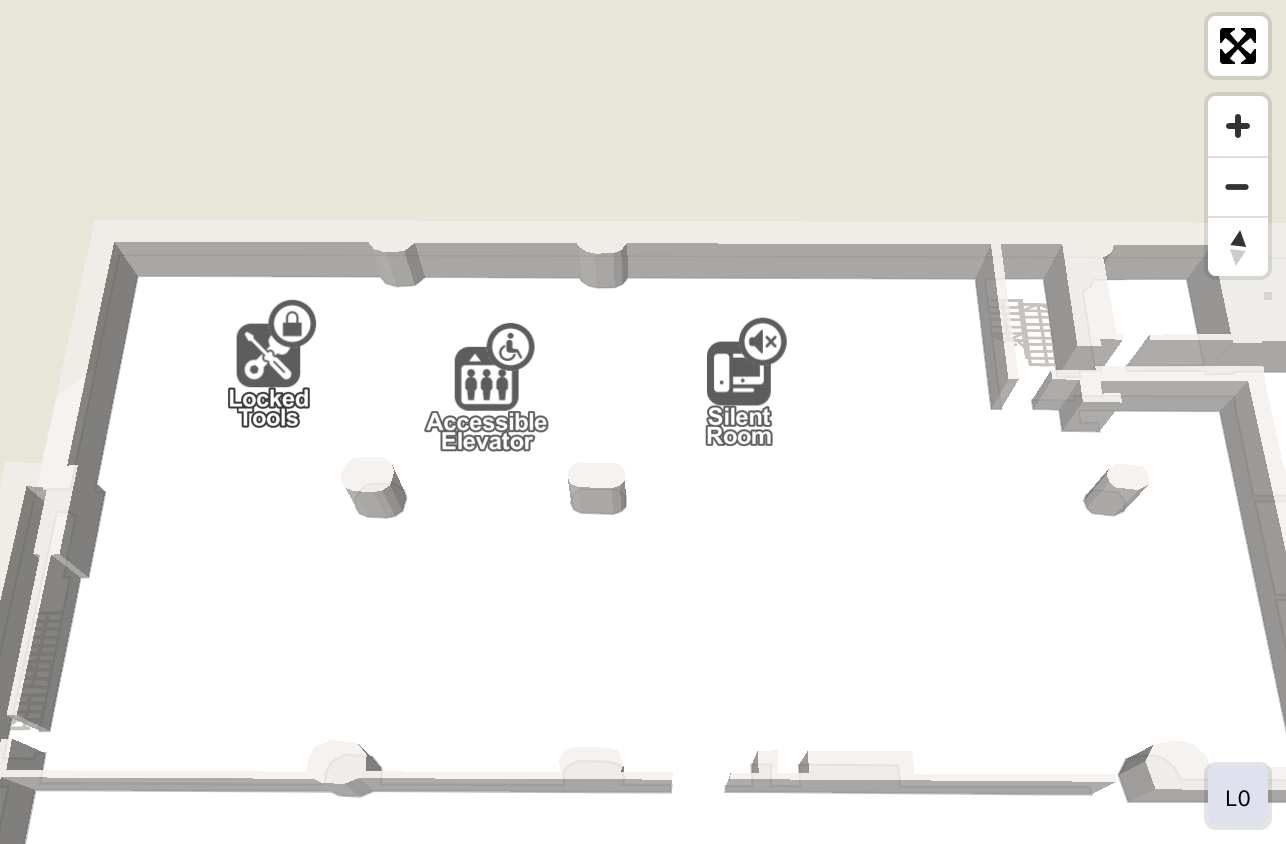
Overlays. Overlays or badges can be added to POIs with symbols to give extra information to the user about the POI. For example, adding an access control overlay to a POI indicates that POI is behind a lock. Supported overlays are access control, quiet place and accessible.
Copyright Steerpath. All rights reserved.
Comments
0 comments
Please sign in to leave a comment.